
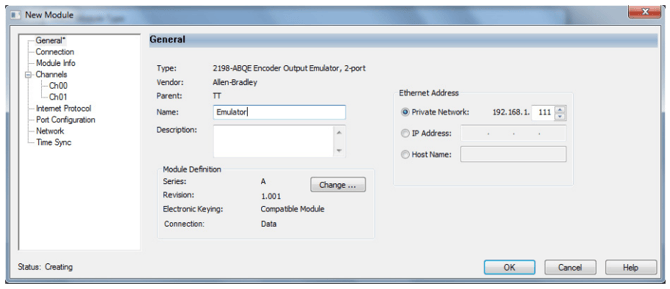
Begin by adding the module to the Ethernet tree. In the General settings, assign a name to the module and configure the Ethernet settings. The 2198-ABQE’s IP address can be set using the rotary switches, then finalized by selecting Private Network in the Ethernet settings.
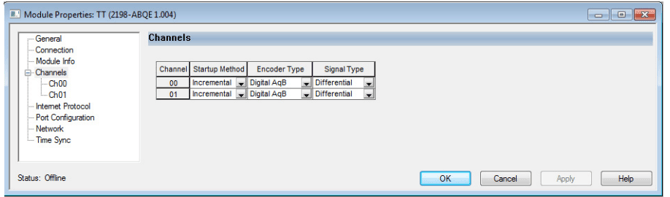
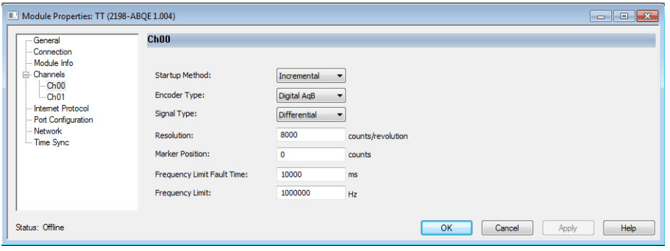
To configure the outputs for Ch00 and Ch01 you can do this in the Channels tab. There are several options which will be covered below. Please note that a power cycle may be required after changing some of these settings.
Startup Options
You have two Startup Options: absolute and incremental
Incremental Startup
With incremental startup, PositionTrackingStatus is always true and the
module generates pulses in response to any change in the input position.
Absolute Startup
Absolute startup provides the ability for the encoder output module to
generate pulses corresponding to the absolute position of the application axis. Please not that this requires a MAG (Motion Axis Gear) instruction. The channel axis position is defined by:
Channel axis position = Application axis position *MAG ratio
Encoder Types
the 2198-ABQE supports two encoder types: Digital AqB and Step/Direction
AqB
Digital AqB provides traditional AqB signals consisting of A, B, and Z. The
module generates one edge in the A and B signals for one count change in
application position input. Signal A leads signal B for positive change in
application position input. The marker pulse is generated on the Z signal.
Step/Direction
Step/Direction provides traditional step and direction output signals
consisting of Step and Direction. The module generates one edge on the Step
signal for one count change in application position input. The Direction signal
indicates which direction the application axis is moving. A high-level signal
indicates a positive change in the application-axis position input. The Z signal
is not active and no marker pulse is generated for the Step/Direction type.
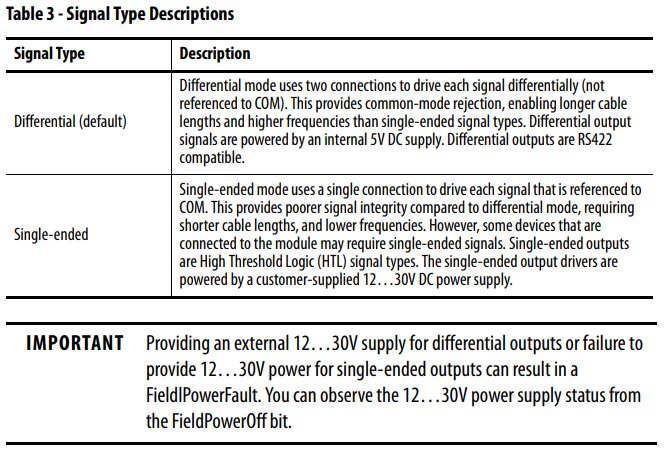
The encoder output module supports differential and single-ended signal
types.
Once the encoder output channels are configured to match the requirements for your application you can use the AOI files to program the 2198-ABQE. They can be downloaded from the PCDC.
- Go to http://compatibility.rockwellautomation.com/Pages/home.aspx
and enter 2198-ABQE in the Search PCDC window.
Start by Importing the AOI:
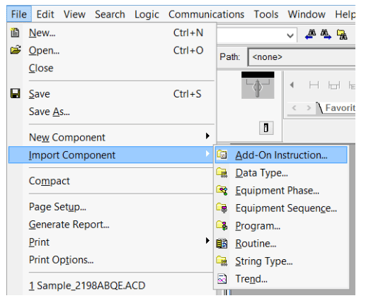
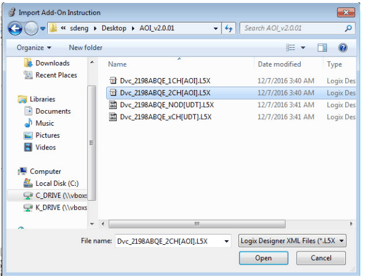
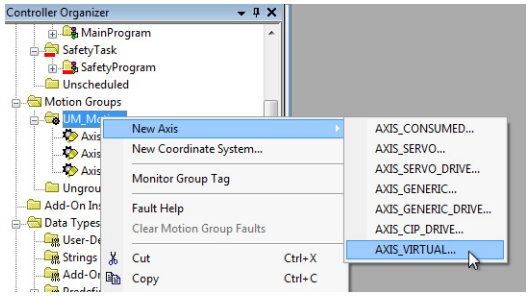
Next, create a virtual axis. You will need one axis per Channel so if you are using both make sure to repeat this step twice. Also, these virtual axes consume a motion device slot. Configure the axis to match your application and add it to the motion group with the input encoder.
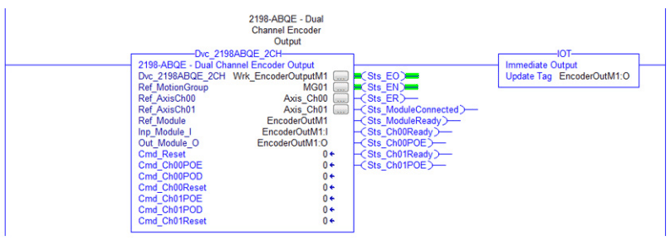
Next add the Dvc tag to a routine. Enter the motion group, virtual axis, and the module you have created into the Dvc tag. It is also helpful to follow this tag with a IOT instruction to update the Encoder output.
Setting up the MAG instruction
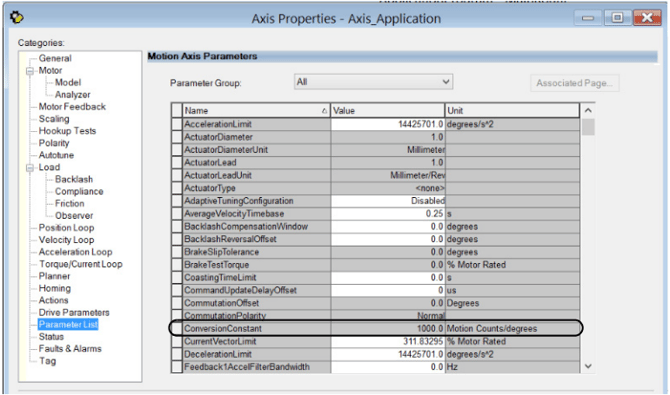
The most important parameter to setup is the Conversion Constant for channel axis.
The Conversion Constant for the channel axis should be set to the same value as the
Conversion Constant for the application axis. If the application axis is a real
axis, you can find the Conversion Constant in the Parameter List tab of the
Axis Properties dialog box.
When you set up the MAG instruction. Set the Motion Axis Gear instruction Ratio Format to Fractional.

Then for the Slave counts, the formula is:

Where Speed is the maximum speed of the application.
For the Master counts, the formula is:
