
When you first create an axis in studio 5000. The Scaling tab in the axis settings will look like this:
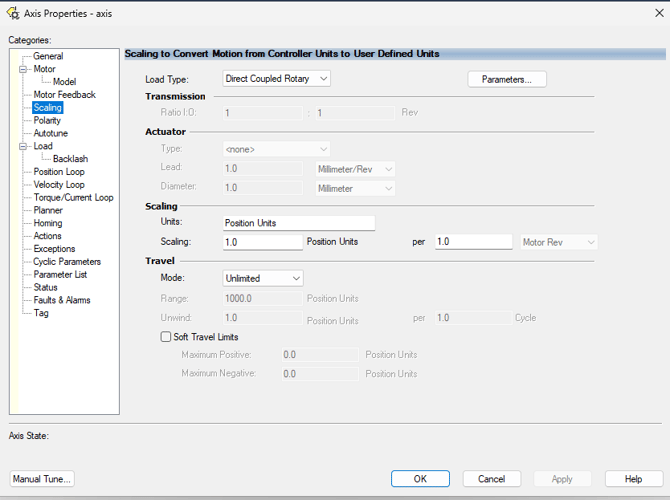
You want to make sure the scaling settings are defined correctly to that the motion controller converts the controller units to correct units for the application. Since every application is differentrent, select the load type that best matches your application.
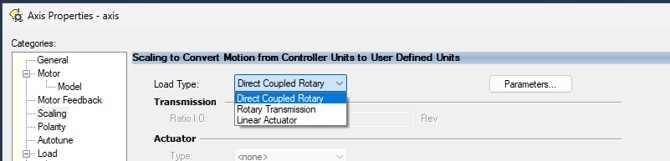
You have three options: Direct Coupled Rotary, Rotary Transmission, or Linear Actuator.
Direct Coupled Rotary
For direct coupled rotary applications, the only settings which must be configured are the units and the scaling per motor revolutions. Once you put in the correct parameters for your project you can click "apply" to make these scaled units the working units for this axis.
Rotary Transmission
Rotary Transmissions are set up exactly the same way as Direct Coupled Rotary applications except that they also include the transmission field. Enter the transmission ratio into this field. Please note that this does not directly scale the torque to the application and still displays the internal torque of the motor.
Linear Actuator
When Linear Actuator is selected you can set the transmission and scaling like a rotary application, but you must also select the type of actuator you are using, For Screw type actuators you must enter the mm/rev that your screw is rated to. For all other Linear actuator applications, you must enter the diameter in mm of the component that is connected to the motor shaft.
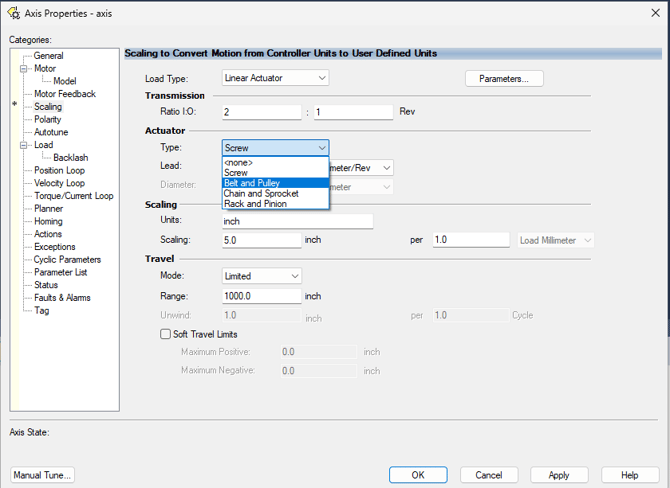
The Travel mode is also set to Limited, Set the range to match your application. You can also set soft travel limits. Remember to apply changes before you leave the tab.